
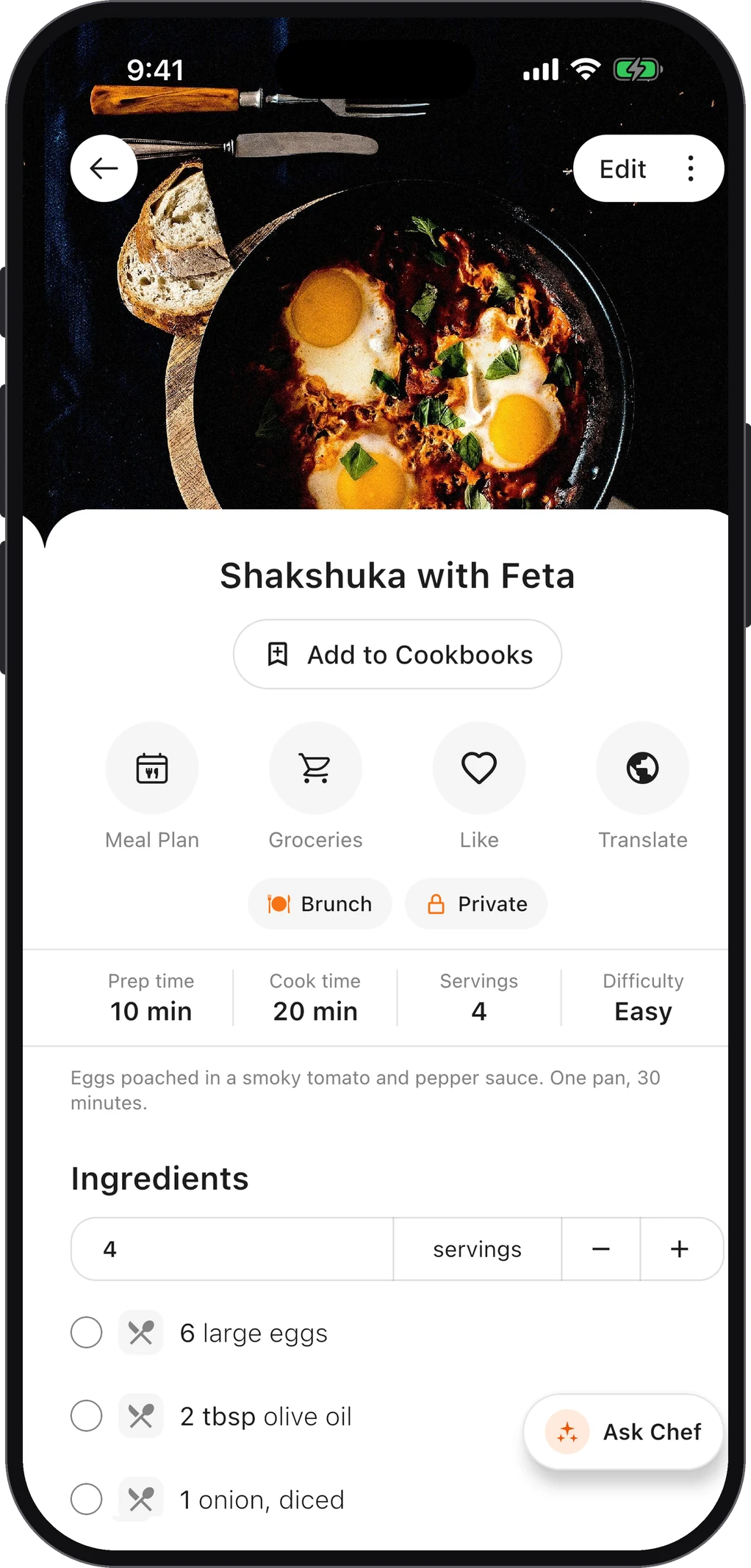
Printing a recipe from an iPhone takes five taps. Getting a good printout is the hard part, because a recipe blog printed as-is comes out as the life story, the ads, the comments and, somewhere around page six, the ingredients.
Here is how to print a recipe from iPhone so it fits on a page or two, including from Instagram, TikTok, Facebook and Pinterest, which have no print option at all.
How to print a recipe from iPhone in Safari
iPhones print wirelessly with AirPrint, which Apple says is built into most popular printer models. Apple’s AirPrint guide has two requirements: a printer that supports AirPrint (check Apple’s list of AirPrint printers), on the same Wi-Fi network as your iPhone. Then:
- Open the recipe in Safari.
- Tap the Share button. On newer iOS layouts, if Share isn’t on the toolbar, look in the ••• menu.
- Scroll down the list and tap Print.
- Tap No Printer Selected and choose your printer.
- Pick the number of copies and, if you want, which pages to print.
- Tap Print in the upper-right corner.
Step 5 saves paper: scroll through the page thumbnails and set the range to just the pages with the ingredients and method. From a full blog post you’ll still get ads and photos, though. The next two methods fix that.
If you print the same recipes often, save them once instead of hunting for the blog post each time. ChefBook imports a recipe from its link and keeps only the ingredients and steps. Get ChefBook free on the App Store.
Print only the recipe card with the site’s Print button
Most recipe blogs put the recipe in a “card” near the bottom of the post, and that card almost always has its own Print button. It opens a stripped-down page with the title, ingredients and method, usually without the story, ads or comments, laid out for paper. Print that page with the steps above.
To reach the card fast, tap Jump to Recipe at the top of the post if there is one. More in how to get the recipe without the story.
No print button? Use Reader first
Some sites have no recipe card. Safari’s Reader view rebuilds the page as plain text and images:
- Tap the Page Menu button in the address bar.
- Tap Show Reader.
- Now Share → Print as above.
Reader isn’t offered on every page, and it sometimes drops or scrambles the ingredient list, so check the preview against the original.
No Reader? Hide Distracting Items, in the same Page Menu, lets you tap a banner to remove it before printing. Apple’s Distraction Control page warns it doesn’t permanently hide ads or other items that change often.
Save a recipe as a PDF on iPhone and print it later
Not near a printer? Save the recipe as a PDF and print it from the Files app whenever you are.
- From the print preview: on the Print screen, spread two fingers on a page thumbnail to open the print job as a PDF, then tap Share → Save to Files. Do it from the print-button page or Reader and you keep the clean version. The gesture isn’t in Apple’s print guide; if it doesn’t respond on your iOS version, use the next option.
- A full-page screenshot: take a screenshot in Safari, tap the preview, choose Full Page, then save it to Files as a PDF. It keeps the entire page, ads and all: better for an archive than for printing.
To print later, open the PDF in the Files app, tap Share and choose Print.
A PDF is a snapshot: it won’t scale to six servings or become a shopping list. For that, see how to save recipes on iPhone.
How to print a recipe from Instagram, TikTok, Facebook or Pinterest on iPhone
As Apple’s guide puts it, not all apps support printing. Get the recipe text out first, then print that.
Instagram posts and reels. The recipe is usually in the caption or on screen in the video. Screenshot the caption, or the reel paused on its ingredient list, open the screenshot in Photos and use Live Text: tap the Live Text button, then Copy or Select All (Apple’s Live Text page). Paste into a note in Notes and print the note. More in how to save recipes from Instagram.
TikTok. Same approach: screenshot, Live Text, paste, print. If the recipe is only spoken, write it down as you watch. See how to save recipes from TikTok.
Facebook. Many recipe posts link out to a blog: open the link and use the site’s Print button. If the recipe is in the post itself, screenshot it and use Live Text.
Pinterest. A pin is a picture and a link. Follow the link to the recipe website and print from its recipe card. Dead link? Saving recipes from Pinterest has what to try next.
The shortcut: ChefBook imports recipes from Instagram, TikTok, Pinterest and YouTube links, and from any recipe website, as a proper ingredient list and steps. ChefBook doesn’t import from Facebook, but you can paste the copied text into its import from text. Download ChefBook free.
Troubleshooting: when the printout goes wrong
| Problem | Why it happens | Fix |
|---|---|---|
| Ads, comments and photos print too | You printed the whole blog post | Use the recipe card’s Print button, or Reader |
| Ten pages or more | Long post, big photos | Set a page range in the print options; check the preview first |
| Ingredients missing or jumbled | Reader didn’t recognise the recipe card | Turn Reader off and use the site’s Print button |
| Text cut off at the edge | Wide tables or images on the page | Print from the Print button page or Reader instead |
| No printer in the list | Different Wi-Fi network, or no AirPrint | Join the same Wi-Fi as the printer and check Apple’s AirPrint list. AirPrint needs the printer on Wi-Fi or a wired network, not Bluetooth |
| No Print option anywhere | The app doesn’t support printing | Copy the text out (Live Text) and print from Notes |
Do it with ChefBook: save once, print a clean PDF whenever you need it
Instead of printing from the blog every time, ChefBook makes it two steps:
- Save the recipe once. Paste a link from any recipe website, Instagram, TikTok, YouTube or Pinterest, or import a photo of a cookbook page or a pasted caption. You get just the title, ingredients and steps, saved in your library, and it opens even without internet.
- Export it as a PDF. PDF export is a Premium feature; free accounts get 5 uses of Premium features a week. ChefBook doesn’t print anything itself: it hands the PDF to iOS, and you print it with Share → Print like any other file.
And because the recipe is stored as ingredients rather than a picture of a page, changing the servings recalculates the quantities, and one tap sends the ingredients to your grocery list. Get ChefBook free on the App Store.
Questions people ask
How do I print a recipe from my phone?
On an iPhone, open the recipe in Safari, tap Share, then Print, choose your AirPrint printer and tap Print. For a cleaner page, tap the recipe card’s own Print button first, or turn on Reader.
How do I print a recipe from Facebook on iPhone?
If the post links to a website, open the link and use the site’s Print button. If the recipe is in the post text, screenshot it, copy the text with Live Text, paste it into Notes and print the note.
How do I print recipes from Instagram reels on iPhone?
Instagram has no print option. Screenshot the caption or the paused ingredient list, copy the text with Live Text in Photos, paste it into Notes and print from there. Or import the reel’s link into a recipe app and print a PDF of the recipe.
Why does my recipe print so many pages?
Because the whole post is printing: story, photos, ads and comments. Use the recipe card’s Print button, which usually fits the recipe on one or two pages, and check the page thumbnails in the print preview before you tap Print.
Keep every recipe in one place
ChefBook is free on the App Store and Google Play — save your first recipe today.
phone camera