 ChefBook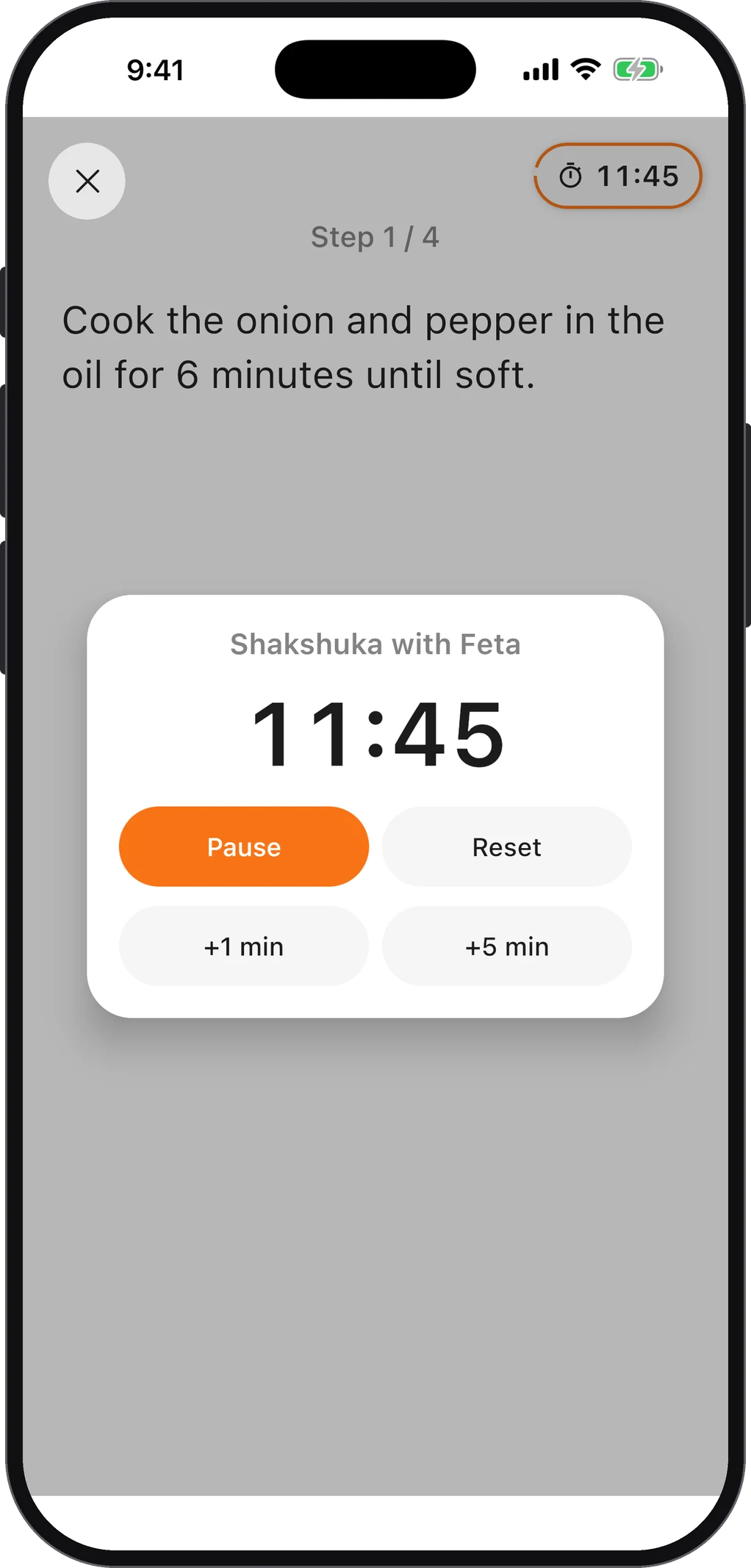
An iPad is a better kitchen screen than a phone: bigger text, room for the ingredient list and the method side by side, and it stays put on a stand. Its one bad habit is locking itself after a couple of minutes, which is exactly how long you spend kneading or chopping between glances at the recipe.
There are three ways to fix it. They suit different kinds of cook.
Method 1: turn off Auto-Lock
This is the bluntest fix, and it works for every app.
- Open Settings.
- Tap Display & Brightness.
- Tap Auto-Lock and choose Never.
The screen now stays on until you press the top button to lock it.
The catch: it stays on everywhere, all the time. Leave the iPad on the sofa afterwards and it will sit there with the screen lit until the battery runs down. Most people who use this method forget to switch it back at least once. If you go this way, set Auto-Lock back to a few minutes as part of cleaning up after dinner.
If Auto-Lock is greyed out: check whether Low Power Mode is on (Settings › Battery). With Low Power Mode on, the device uses a short Auto-Lock and won’t let you change it. Plug the iPad in or turn Low Power Mode off.
Method 2: Guided Access, for one app only
Guided Access is an accessibility feature that locks the iPad into a single app. It has its own auto-lock setting, which means you can keep the screen on in the recipe app without changing it for everything else. It also stops a stray elbow from swiping you out of the recipe.
To set it up once:
- Open Settings › Accessibility › Guided Access and switch it on.
- Set a passcode under Passcode Settings.
- Open Display Auto-Lock and choose Never.
Then, while cooking:
- Open the recipe in your app or browser.
- Triple-click the top button (or the Home button on iPads that have one) and tap Start.
- When you’re done, triple-click again and enter your passcode to leave.
The catch: it is more setup, and while it’s on you can’t switch to a timer app or a second recipe without leaving Guided Access first.
Method 3: use a recipe screen that keeps itself awake
The neatest fix leaves your settings alone: let the recipe page or app hold the screen on only while you’re cooking. Modern browsers, including Safari on iPadOS, support a screen wake lock that a web page can request, and apps can do the same.
- Recipe pages on chefbook.net have a Keep screen on button. Tap it and the screen stays awake while that page is open; leave the page and the iPad goes back to normal.
- ChefBook’s Cook Mode shows one step at a time in large type, with timers, and keeps the screen awake for as long as you’re in it. ChefBook has a tablet layout, so on an iPad the recipe uses the whole screen rather than a stretched phone view. Cook Mode is a Premium feature; free accounts get 5 uses of Premium features a week.
The catch: it only works where it’s built in. A recipe in a random blog tab or a screenshot in Photos will still lock — which is one more reason to import the recipe from the website instead of cooking from the blog.
Which one to use
| You want… | Use |
|---|---|
| A fix that works in every app, today, in 10 seconds | Auto-Lock › Never (and set a reminder to undo it) |
| The iPad locked into the recipe so nobody swipes away | Guided Access |
| The screen on only while cooking, with no settings to undo | A recipe page or app with a built-in wake lock |
Small things that help
- Prop it up, out of the splash zone. A stand or a cookbook holder a little away from the hob keeps sauce off the screen.
- Turn the brightness up. Kitchens are often lit from above and behind you; a dim screen is hard to read from arm’s length.
- Put the iPad in landscape. Ingredients and method fit side by side, so you scroll less with messy hands.
- Wipe with a dry microfibre cloth afterwards; flour and oil both smear.
For the phone version of the same problem — including Android — see the guide to keeping your phone screen on while cooking. And if your recipes are still scattered across Safari tabs and screenshots, save them properly on iPhone and iPad first.
Questions people ask
Why does my iPad screen keep turning off while I’m reading a recipe?
Auto-Lock turns the screen off after a set time with no touches. Reading doesn’t count as activity, so the iPad locks even though you’re looking at it.
Can I keep the iPad screen on for just one app?
Yes, with Guided Access: its Display Auto-Lock setting applies only while Guided Access is running in that app.
Does leaving the screen on damage the iPad?
No, but it uses battery. If you cook from the iPad often, keep it on a charger or use a recipe page or app that releases the screen when you’re done.
Keep every recipe in one place
ChefBook is free on the App Store and Google Play — save your first recipe today.
phone camera